

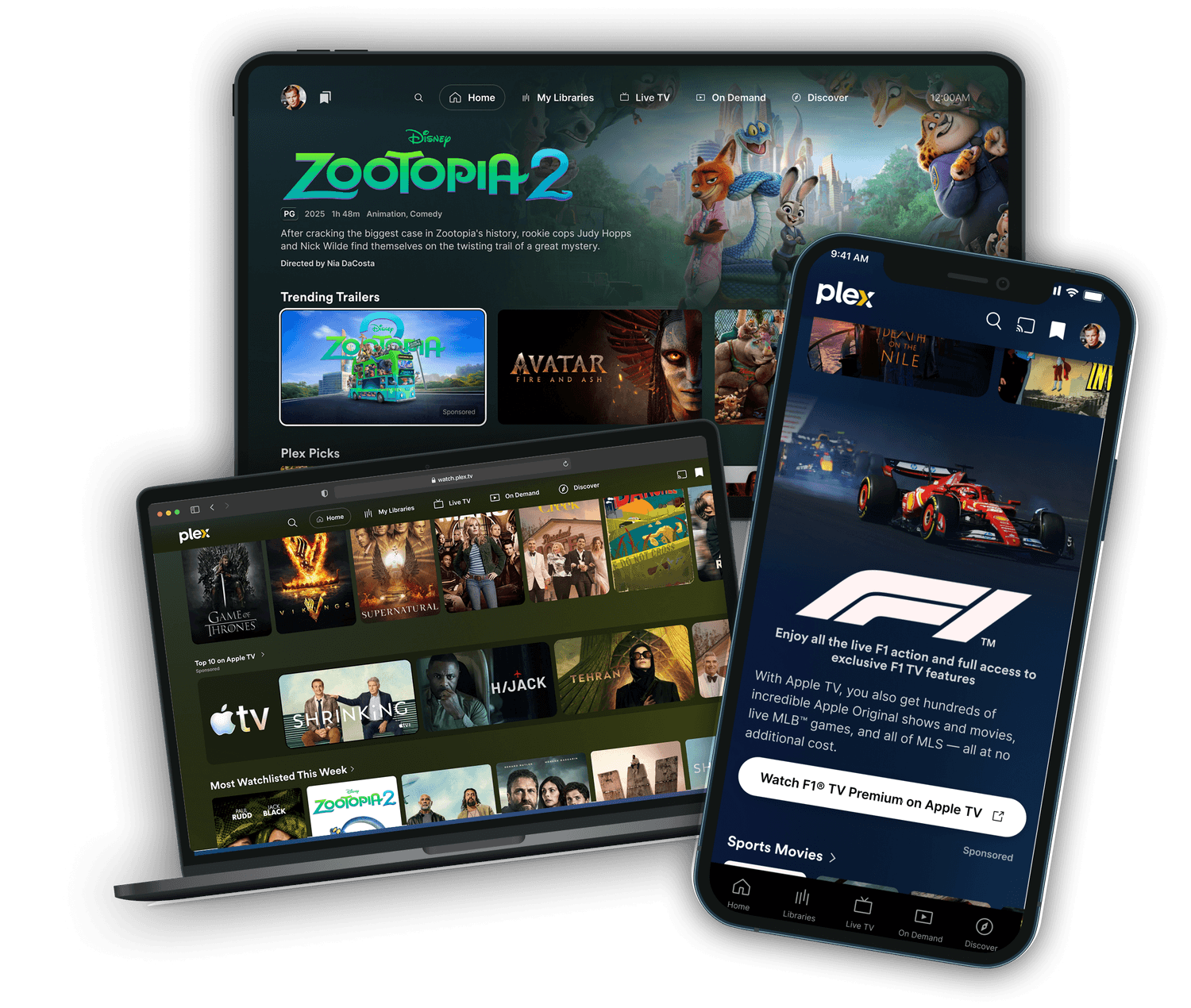
Native & Sponsorship Products
Spotlights & Heroes
Premium home screen takeovers with rich background imagery, title art, and call-to-action
Sponsored Tiles
Pole-position placements within content rows, promoting movies, shows, and trailers
Sponsored Hubs
Brand sponsorship of curated content collections and editorial hubs
In-Stream Video
Non-skippable video ads served during AVOD content playback across all platforms
Pause Ads
Non-disruptive static image ads displayed when users pause AVOD playback
Sponsored Emails & Push
Premium placements to reach users directly in their inboxes and mobile devices
Spotlights & Heroes
Overview
Spotlights & Heroes are premium sponsored placements that appear prominently on the Plex home screen. They combine rich background imagery, brand title art, and a clear call-to-action to drive user engagement with your content, product, or service.
A “Sponsored” label is displayed alongside the unit on all platforms.
Platforms
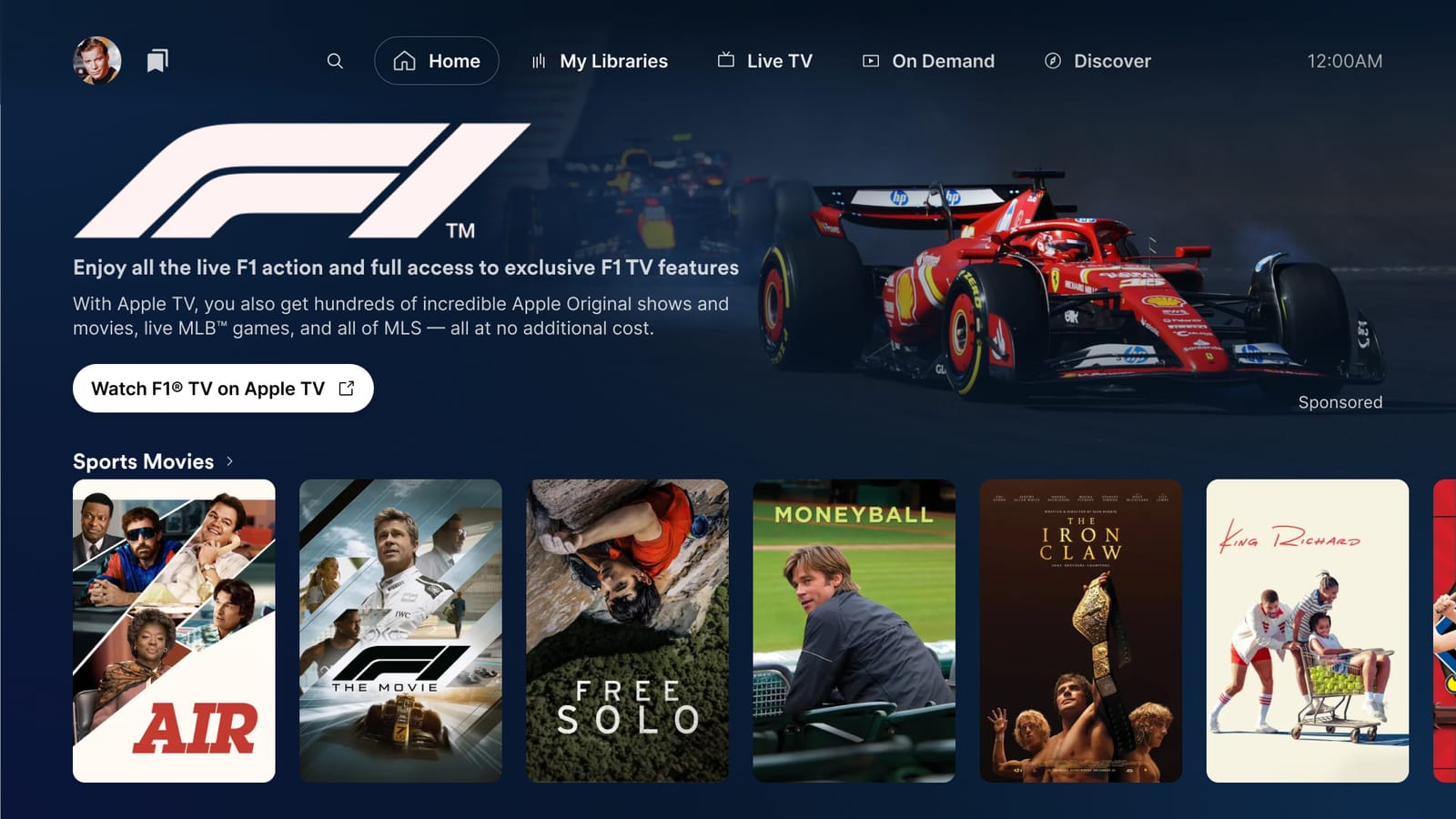
TV
Title art, tagline, copy, and CTA are left-aligned. Background art fills the full width behind all content.
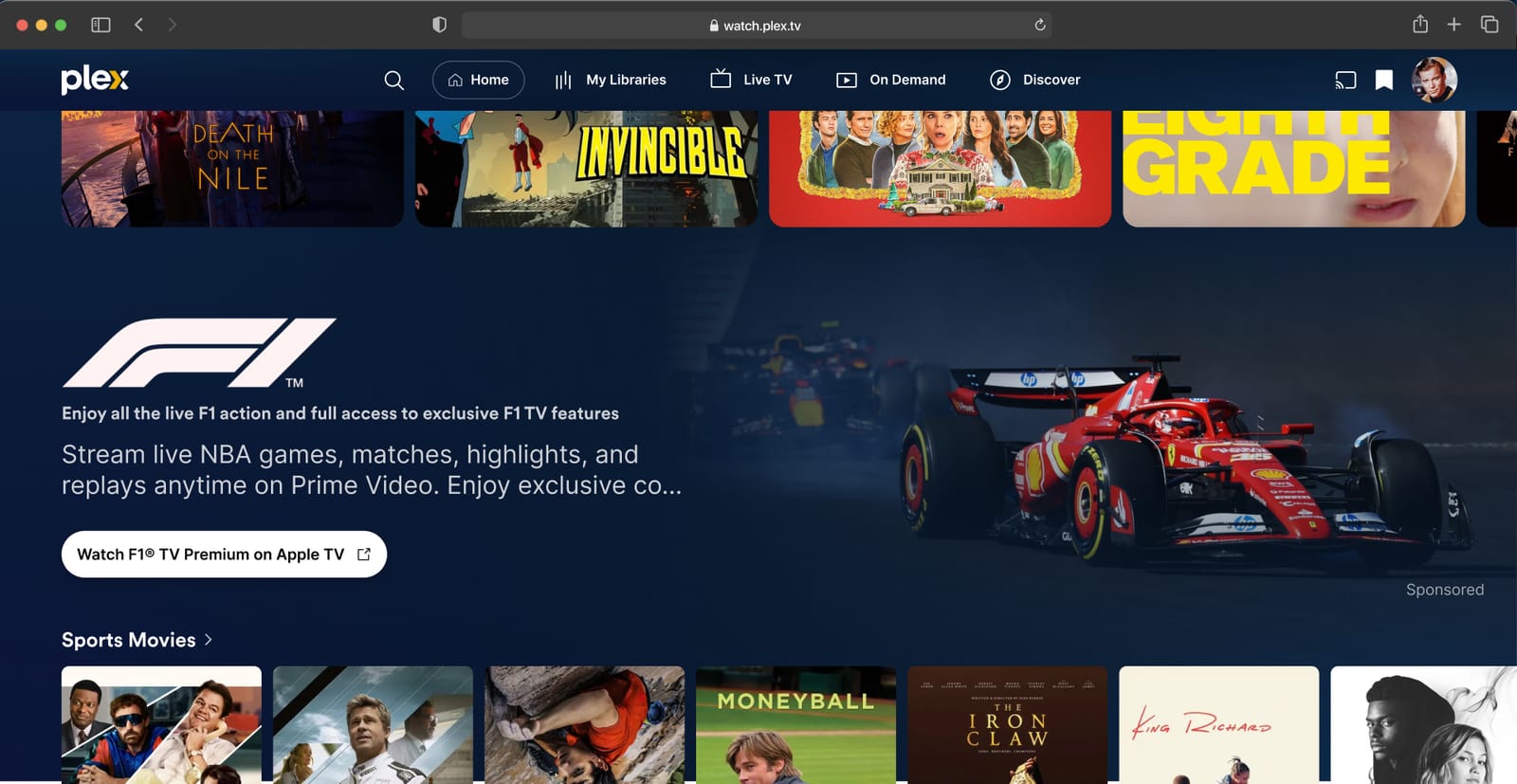
Web / Desktop
Similar to TV. Text content on the left, background art visible on the right.
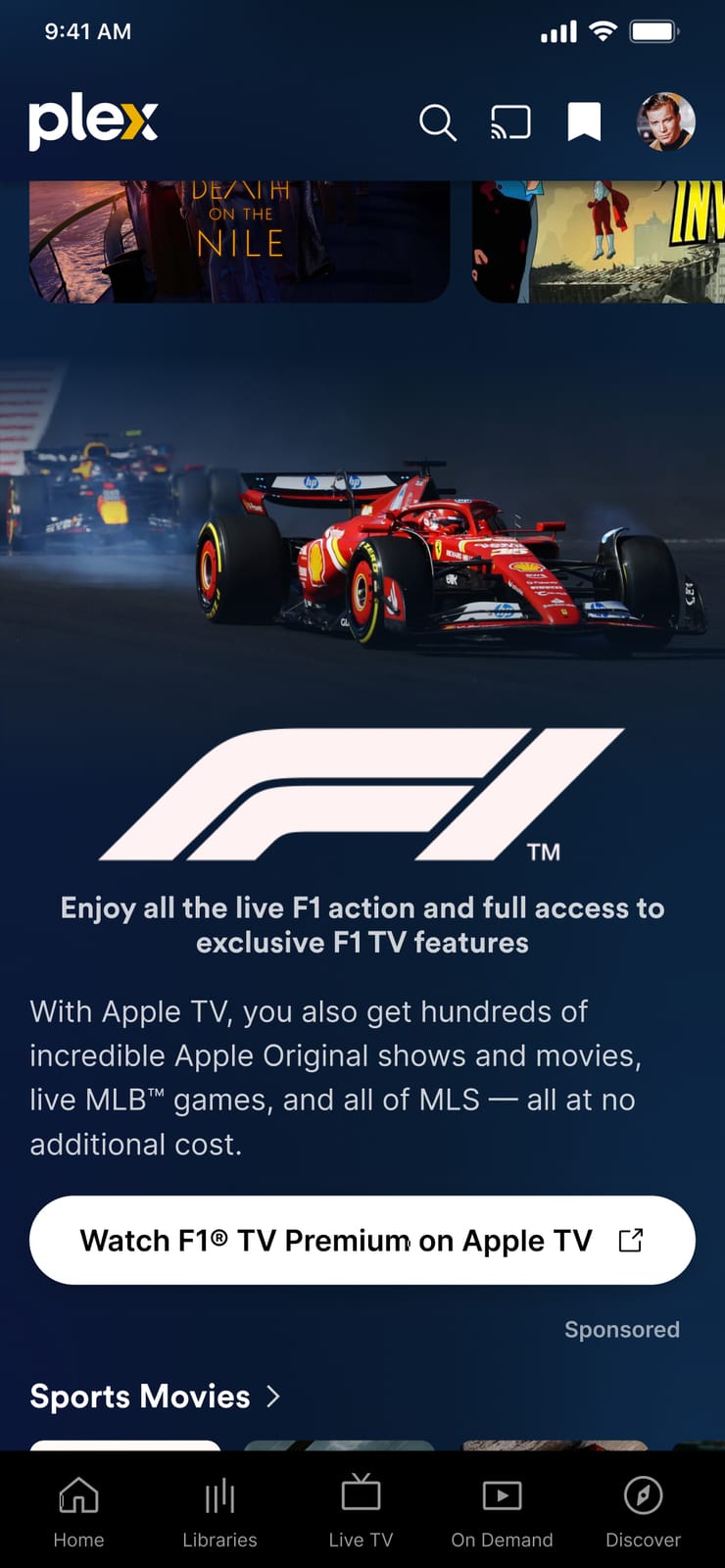
Mobile
Background art displayed above. Title art, tagline, copy, and CTA stacked vertically below.
Creative Elements
Background Art
The primary visual for the unit. Displayed behind the text content on TV and Web, or above it on Mobile.
| Attribute | Requirement |
|---|---|
| Aspect Ratio | 16:9 (required) |
| Mobile Alternate | 1:1 (optional — preferred on mobile if provided; falls back to 16:9) |
| Minimum Resolution | 1920 × 1080 px (16:9) / 1080 × 1080 px (1:1) |
| File Format | JPG or PNG |
| Max File Size | 2 MB (JPG) / 5 MB (PNG) |
| DPI | 72 DPI (screen resolution) |
Safe Zones
On TV and Web, the left ~50% of the background is overlaid with the title art, tagline, copy, and CTA button. A gradient fades the image along the left edge and bottom to ensure text legibility.
Artwork Selection Guidelines
- Prioritize cinematic, visually rich images
- Position the subject matter toward the right or center — avoid left-aligned subjects that will be hidden by the text overlay
- Favor recognizable talent, strong compositions, or product imagery
- Choose artwork with varied color and contrast — avoid heavy browns, yellows, or flat color fields
- Avoid overly busy or cluttered shots (they reduce text readability)
- Avoid large areas of flat color or hard edges (may appear as UI glitches)
- The 1:1 mobile alternate should retain the same focal point as the 16:9 when cropped
Title Art (Clear Logo)
A transparent logo or title treatment displayed prominently above the tagline and copy.

| Attribute | Requirement |
|---|---|
| Aspect Ratio | Between 3:1 and 8:1 (horizontal orientation) |
| Minimum Resolution | 1920 px wide or 180 px tall (whichever is met first) |
| File Format | PNG with transparency (required) |
| Max File Size | 1 MB |
| Color | Light or bright tones — displayed on a dark background |
| DPI | 72 DPI |
Title Art Guidelines
- Bright, saturated, and legible against dark backgrounds
- Trimmed on all four sides — no excess transparent padding around the logo
- Use a wide aspect ratio that fills the available logo container
- Avoid including cast member names, studio logos, or other small text — these are difficult to read at smaller scales
- Avoid dark-colored logos that will not contrast against the background or the dark Plex UI
Tagline Optional
An optional short headline that appears directly below the title art.
| Attribute | Requirement |
|---|---|
| Max Characters | 70 |
| Line Count | Single line on TV and Desktop; may wrap on Mobile |
Description Copy
A supporting paragraph that provides more detail about the content, product, or service.
| Attribute | Requirement |
|---|---|
| Max Characters | 140 (to avoid truncation) |
Call-to-Action (CTA) Button
A button that drives the user to a destination.
| Attribute | Requirement |
|---|---|
| Max Characters | 32 (24 or fewer preferred) |
The CTA label should be concise and set clear expectations for where the action will take the user (e.g., “Watch Now on App Name”, “Learn More”, “Stream Free”).
CTA Destinations
The CTA button supports the following destination types:
| Destination Type | Behavior |
|---|---|
| Content Page | Navigates the user to a Movie Details page within Plex for the linked title |
| Direct Playback | Initiates direct video playback Specs TBD |
| External URL | Opens the URL directly on mobile and web. On TV, displays a sidesheet overlay with a QR code so the user can visit the URL on their phone. |
Asset Checklist
| Asset | Format | Required |
|---|---|---|
| Background Art (16:9) | JPG / PNG | Required |
| Background Art (1:1) | JPG / PNG | Recommended |
| Title Art (Clear Logo) | PNG (transparent) | Required |
| Tagline | Text (70 chars max) | Optional |
| Description Copy | Text (140 chars max) | Required |
| CTA Label | Text (32 chars max) | Required |
| CTA Destination | URL / Content ID | Required |
Sponsored Tiles
Overview
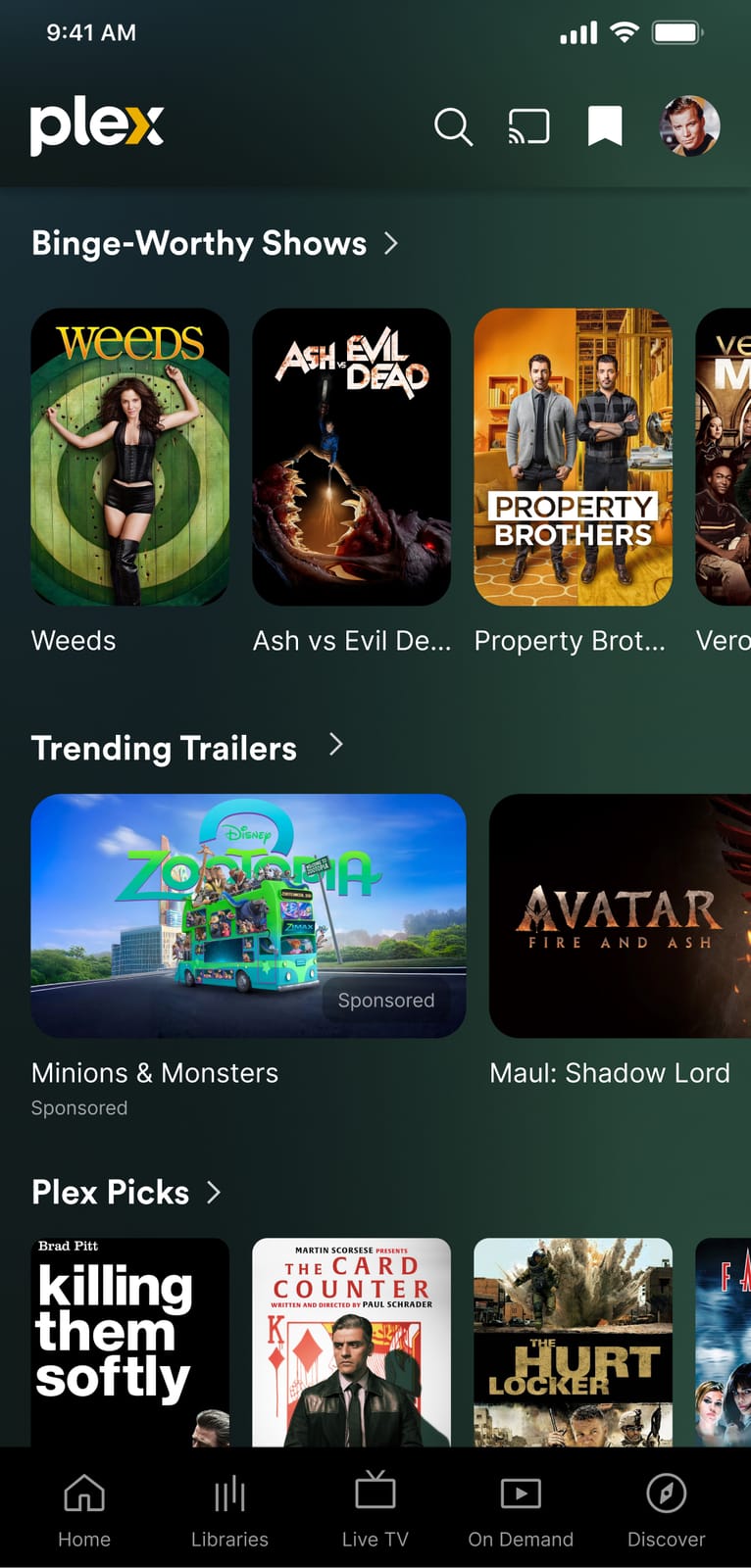
Sponsored Tiles are premium placements within content rows on the Plex home screen. A sponsored tile highlights a piece of content — such as a movie, show, or trailer — in the pole position (first slot) of a curated row alongside other featured content.
Common use cases include showcasing a trailer for an upcoming theatrical release in a "Trending Trailers" row or promoting a movie or show available on or off the Plex platform.
A “Sponsored” label is displayed on the tile across all platforms.
Platforms
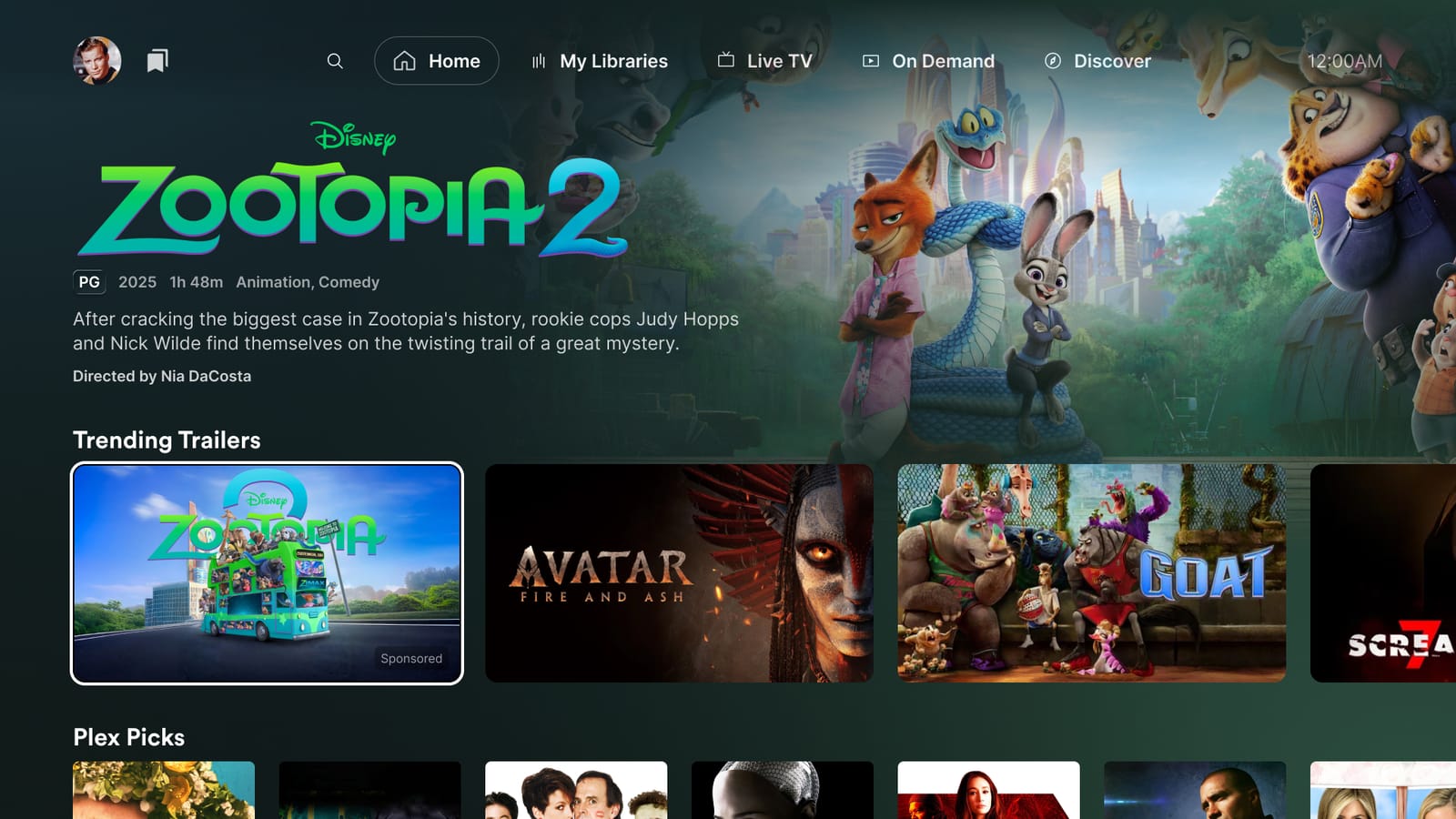
TV
The sponsored tile appears in the first position of a content row. When focused, the content’s title art, metadata, and summary are displayed in a spotlight area above the row.
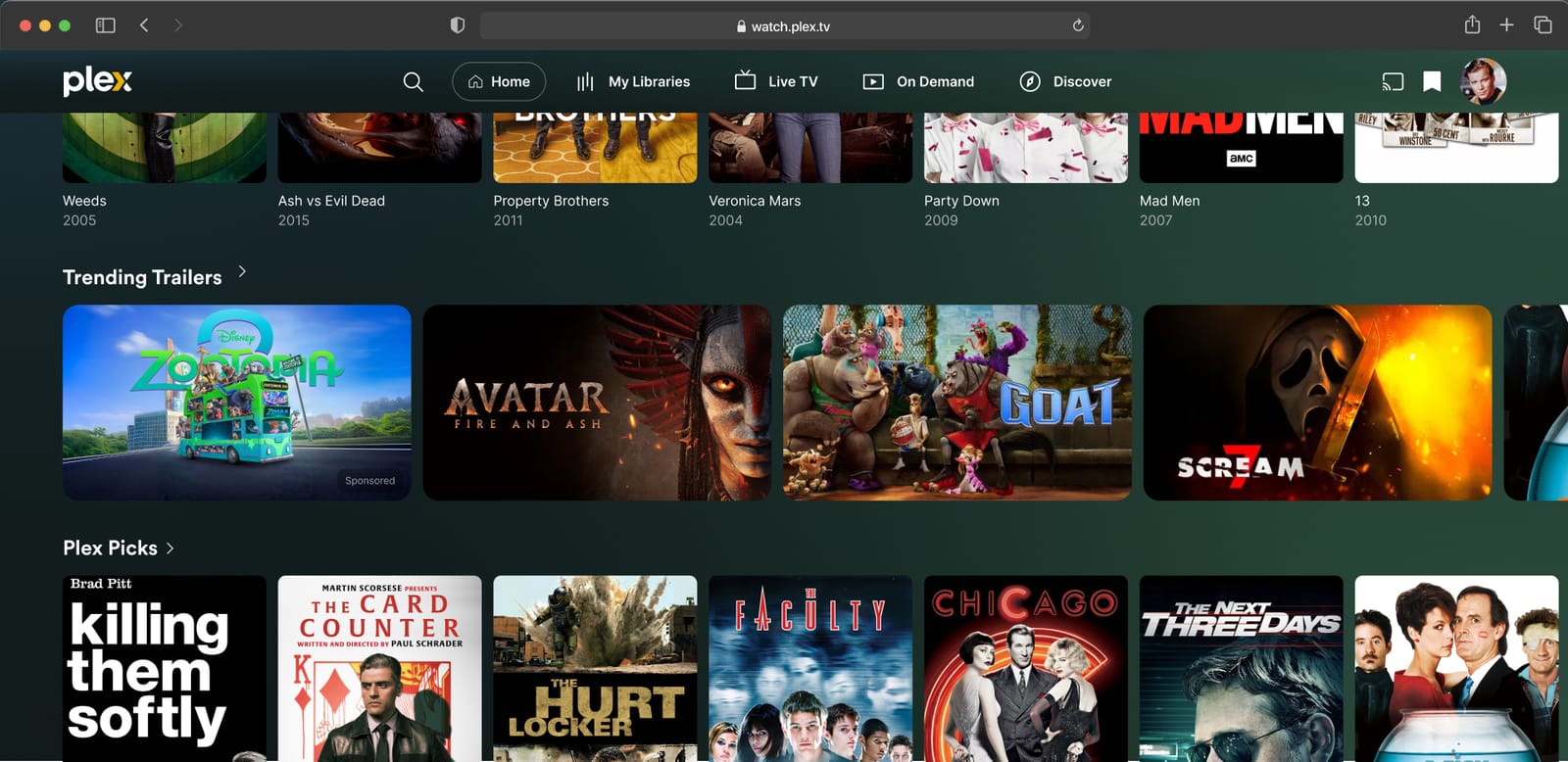
Web / Desktop
Same row placement as TV. The tile sits in the first position of a scrollable content row with a “Sponsored” badge.
Mobile
The sponsored tile appears first in a horizontally scrollable content row. A “Sponsored” label is shown beneath the tile title.
Creative Elements
Because Sponsored Tiles promote content that is typically already cataloged by Plex, most of the visual elements are sourced automatically from Plex’s metadata. Partners may optionally provide custom artwork to override the default.
Tile Artwork Optional
A single 16:9 image displayed as the tile within the content row. If not provided by the partner, Plex will use existing artwork from its catalog for the associated content.
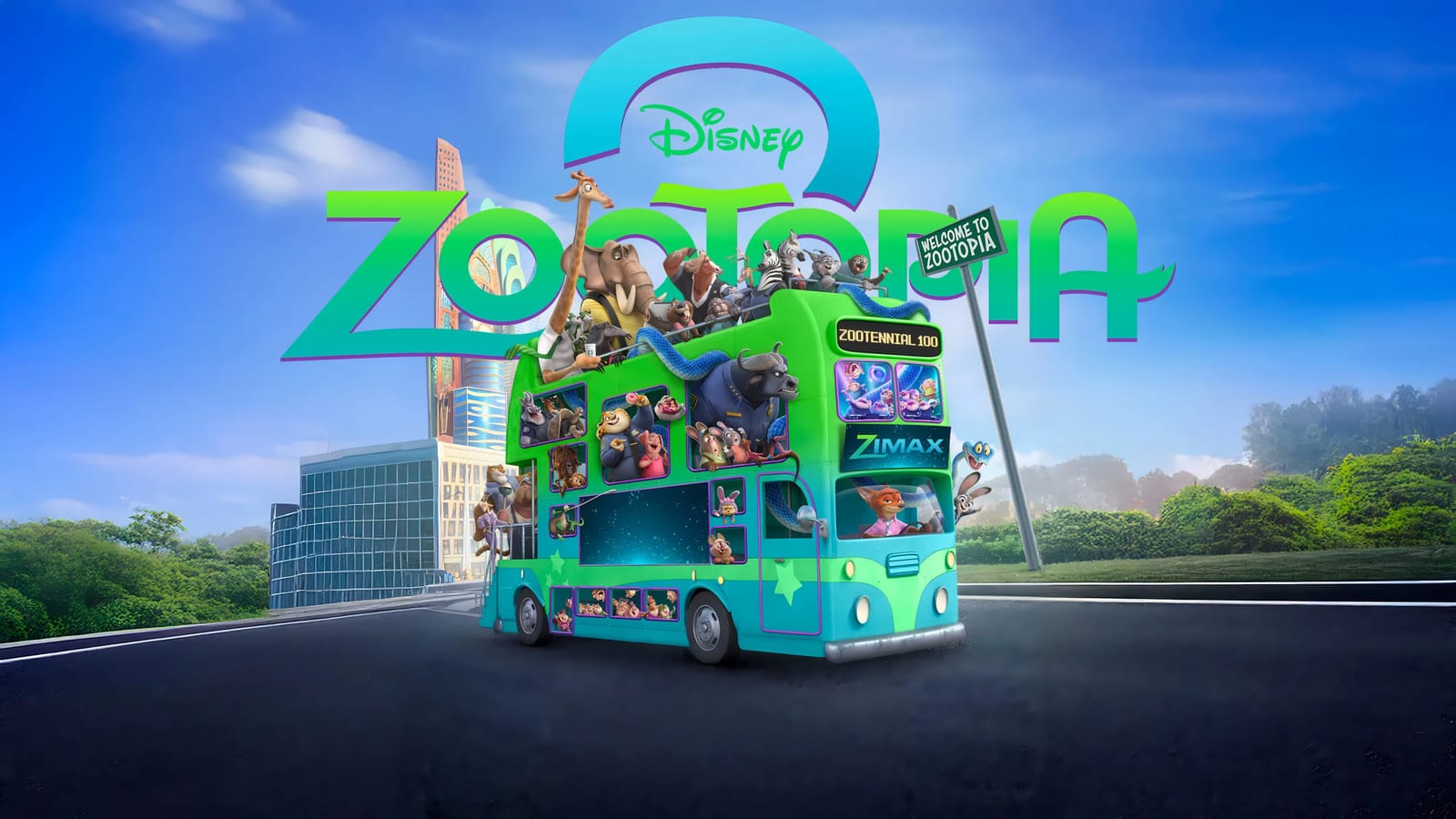
| Attribute | Requirement |
|---|---|
| Aspect Ratio | 16:9 |
| Minimum Resolution | 1920 × 1080 px |
| File Format | JPG or PNG |
| Max File Size | 2 MB (JPG) / 5 MB (PNG) |
| DPI | 72 DPI (screen resolution) |
Safe Zone
Allow 128 px of padding on all sides (at 1920 × 1080 resolution). The edges of the tile may be used by the platform for badges, service identifiers, or the “Sponsored” attribution label.
Artwork Guidelines
- Text may be baked into the image if desired (e.g., title treatment, release date, tagline)
- Keep key visual content within the safe zone — avoid placing text or logos near the edges
- Use high-contrast imagery that remains legible at smaller tile sizes on mobile
- If including text, ensure it is large enough to read at the smallest rendered tile size (~350 px wide on web)
- The tile will have rounded corners applied by the platform — avoid hard-edge designs in the corners
Content Identifier Required
The Plex content ID, GUID, or external identifier (e.g., IMDb ID, TMDB ID) for the movie, show, or trailer being promoted. This tells Plex which content to link the tile to and enables automatic metadata sourcing.
| Attribute | Requirement |
|---|---|
| Type | Plex GUID, IMDb ID, or TMDB ID |
| Example | imdb://tt12345678 |
Row Placement Required
The content row where the sponsored tile will appear. Tile position within the row is coordinated with the Plex ad sales team. A premium first-position (pole position) placement may be available.
| Attribute | Requirement |
|---|---|
| Row | Coordinated with the Plex ad sales team |
| Position | Coordinated with the Plex ad sales team |
Common Row Types
- Trending & Personalized — Trending Trailers, Most-Watchlisted This Week, etc.
- Genre & Category — Reality, Comedy, Action, Horror, etc.
- Seasonal & Holiday — themed hubs around tentpole events (Pride Month, March Madness, Holiday, etc.)
- Streaming Service & Availability — hubs organized by where content is available
- Curated — Plex Picks, Binge-Worthy Shows, and other editorial collections
What Plex Provides
When the sponsored tile promotes content already in the Plex catalog, the following elements are sourced automatically. No partner action is required for these unless a custom override is desired.
| Element | Source |
|---|---|
| Tile Artwork | Default poster or artwork from the Plex catalog (16:9 crop) |
| Background Art | Displayed behind the content detail when the tile is focused on TV |
| Title Art / Logo | Clear logo shown in the detail/spotlight view |
| Metadata | Rating, year, duration, genres — pulled from catalog |
| Description | Synopsis text shown in the detail/spotlight view |
Tile Behavior
| Platform | Behavior |
|---|---|
| TV | When the user navigates to the sponsored tile, the content’s title art, metadata, summary, and background art are displayed in a spotlight area above the row. Selecting the tile opens the content detail page. |
| Web / Desktop | Clicking the tile navigates to the content detail page within Plex. |
| Mobile | Tapping the tile navigates to the content detail page within the Plex app. |
Add to Watchlist
For Trending Trailers placements, the sponsored tile includes an interactive “Add to Watchlist” button. This allows users to save the title to their personal watchlist directly from the tile — without interrupting video playback or navigating away from the home screen.
Asset Checklist
| Asset | Format | Required |
|---|---|---|
| Content ID | Plex GUID / IMDb / TMDB | Required |
| Row Placement | Coordinated with Plex | Required |
| Custom Tile Artwork | JPG / PNG (16:9, 1920×1080) | Optional |
| Custom Background Art | JPG / PNG (16:9, 1920×1080) | Optional |
Sponsored Hubs
Overview
Sponsored Hubs allow a brand to sponsor a curated collection of movies and/or shows on the Plex home screen. This is ideal for partners who want to highlight their own streaming content or for brands with no direct content affiliation who want to reach audiences through contextually relevant entertainment collections.
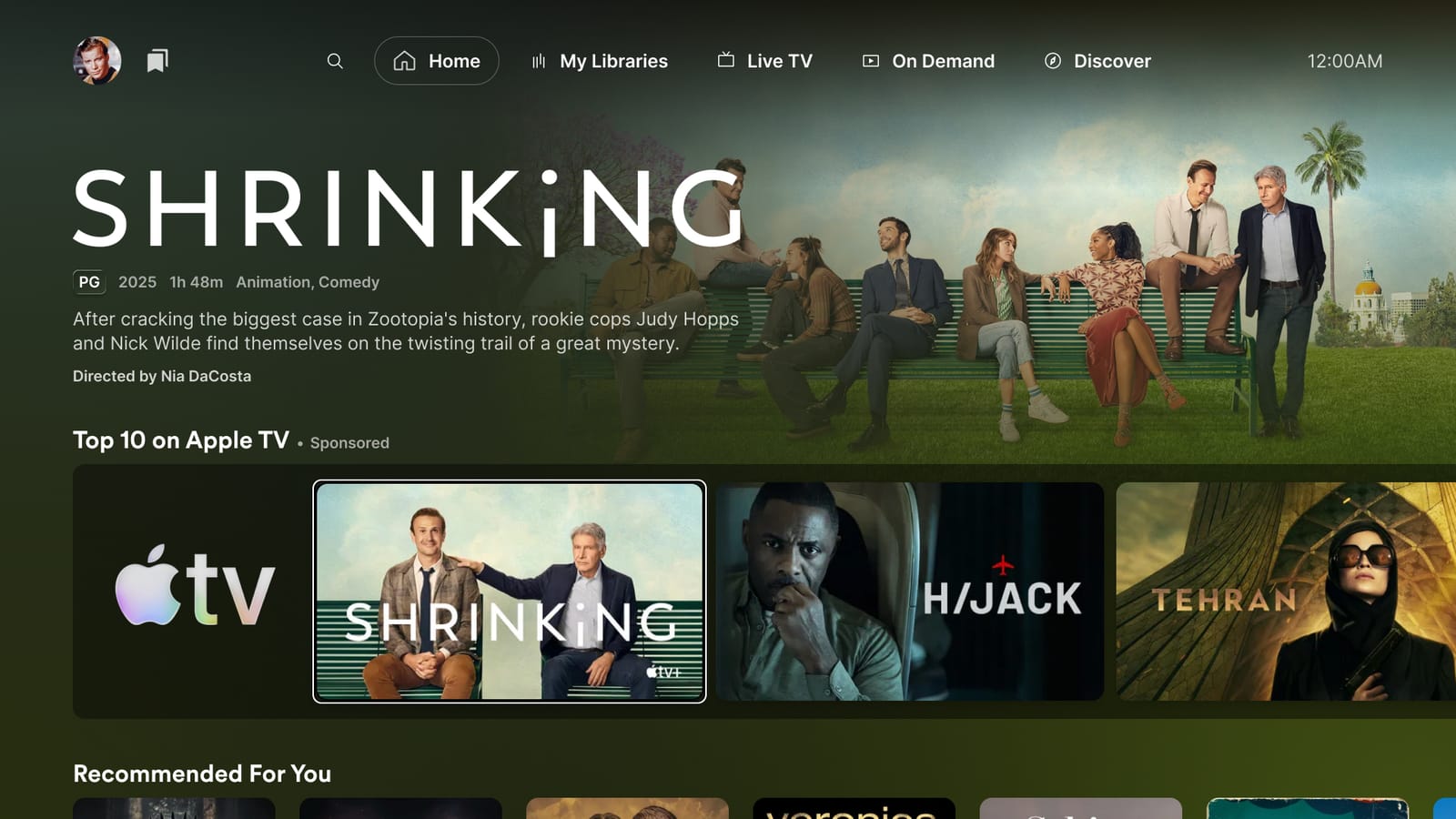
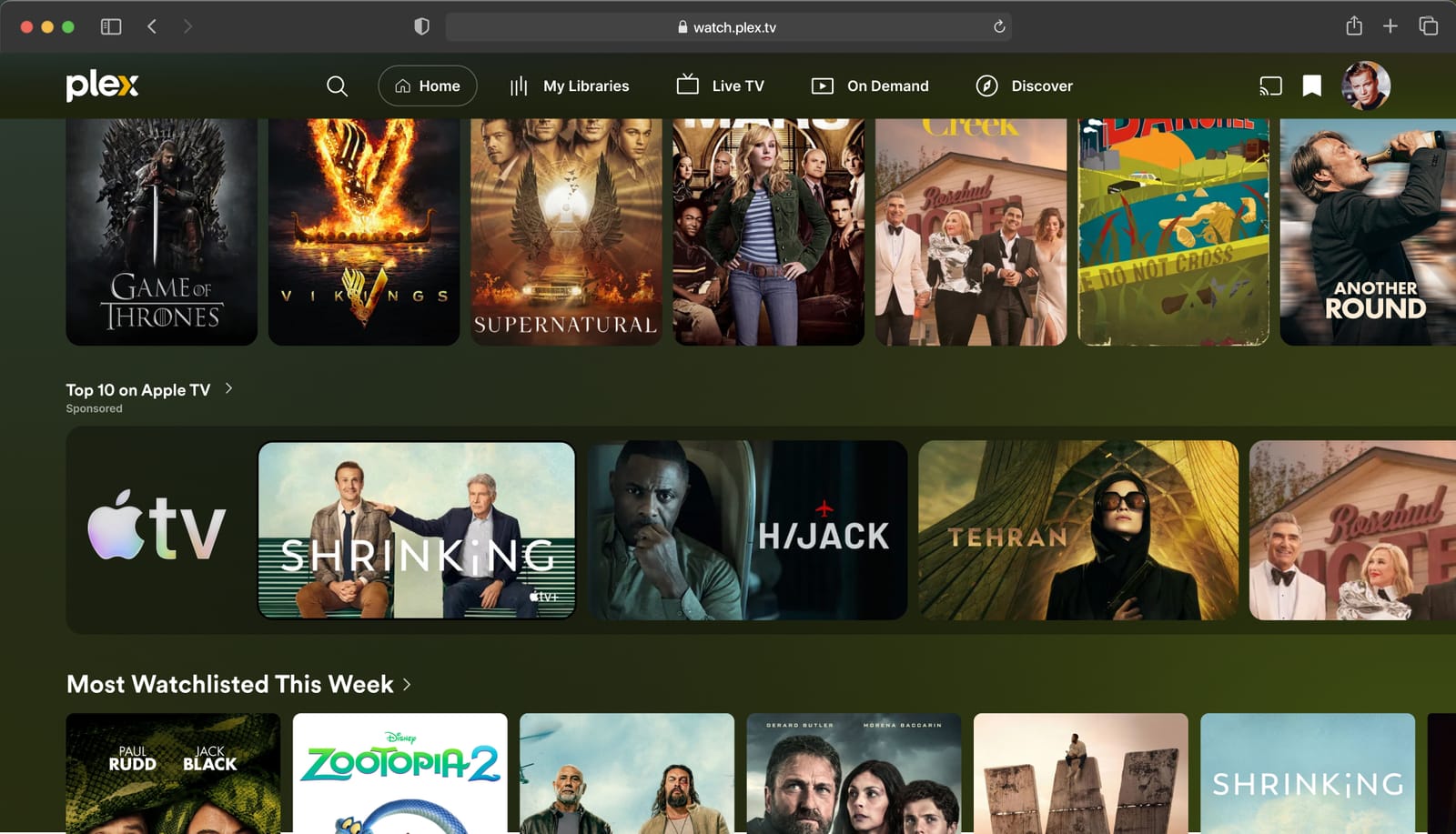
The sponsor’s logo appears as the first element in the hub row, followed by the curated content tiles. A “Sponsored” label is displayed alongside the hub title.
Platforms
TV
The sponsor logo appears as the first tile in the hub row. When focused, the content’s detail and metadata are shown above.
Web / Desktop
Same hub layout as TV. The sponsor logo is the first element in the scrollable row.
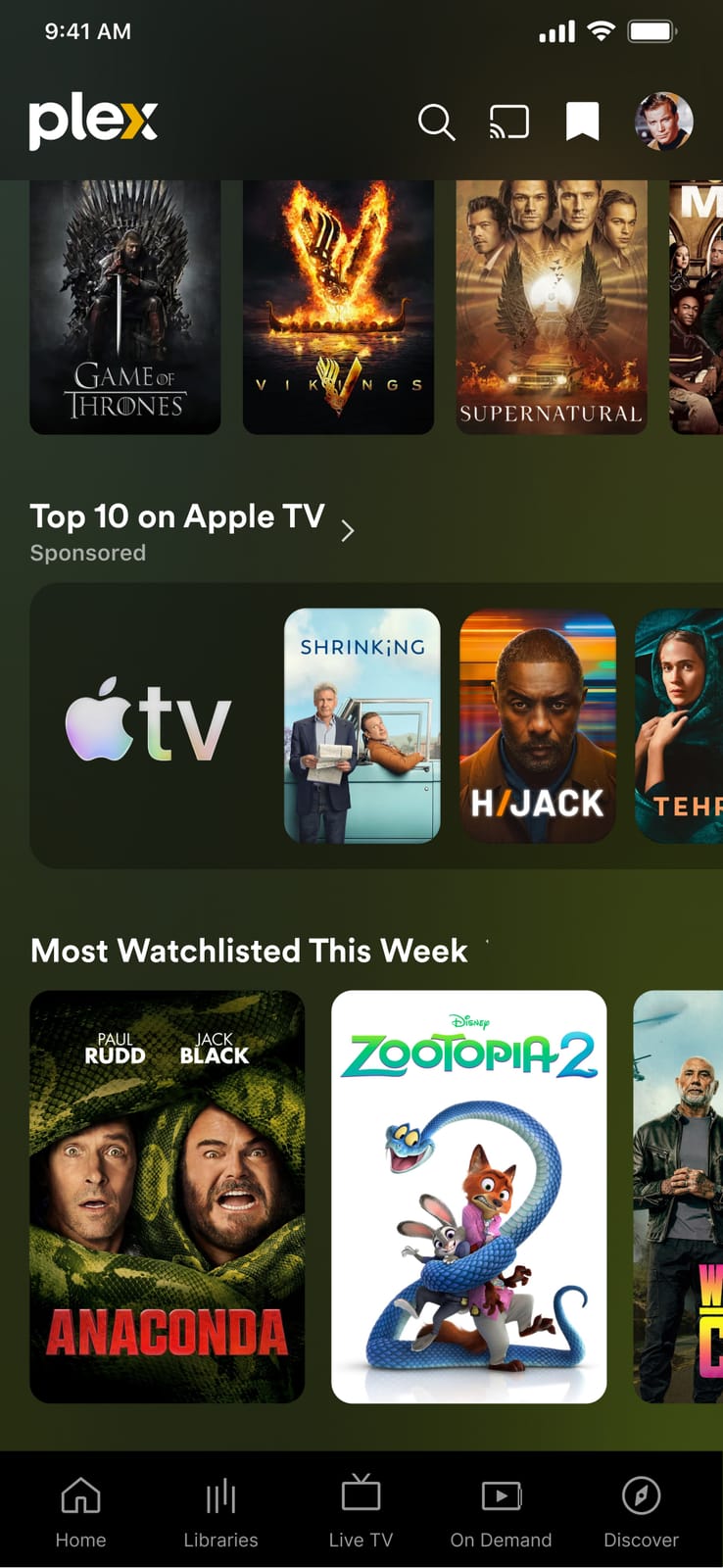
Mobile
Hub rows display vertically with the sponsor logo leading the content tiles.
Creative Elements
Sponsor Logo
A transparent logo displayed as the first tile in the sponsored hub row. Plex automatically applies padding and positioning.

| Attribute | Requirement |
|---|---|
| Aspect Ratio | 1:1 (square) |
| Minimum Resolution | 512 × 512 px |
| File Format | PNG with transparency (required) |
| Max File Size | 500 KB |
| Color | Light or bright tones — displayed on a dark background |
| DPI | 72 DPI |
Logo Guidelines
- Trimmed on all four sides — no excess transparent padding
- Use a square aspect ratio
- Bright, saturated, and legible against dark backgrounds
- Avoid including taglines or small supporting text — the logo renders at small sizes
- The logo is a non-focusable, non-interactive element on the platform
Hub Content
The collection of movies and/or shows that populate the hub. Coordinated between the partner and the Plex ad sales team.
| Attribute | Requirement |
|---|---|
| Content Type | Movies, TV shows, or a mix |
| Source | Titles available on Plex, other streaming services, or upcoming theatrical/digital releases |
| Curation | Partner provides a list of titles; Plex configures the hub |
Hub Types
| Hub Type | Description |
|---|---|
| High Frequency | Hubs with persistent home screen visibility (e.g., Plex Picks, Most-Watchlisted This Week, Binge-Worthy Shows) |
| Genre-Based | Hubs organized by genre (e.g., Reality, Comedy, Action, Horror, Sci-Fi) |
| Seasonal & Holiday | Themed hubs during tentpole events (e.g., Pride Month, March Madness, Holiday Merrython) |
| Custom Curated | Advertiser-curated collection — the partner selects the titles that populate the hub |
Asset Checklist
| Asset | Format | Required |
|---|---|---|
| Sponsor Logo | PNG (transparent, 1:1, 512×512+) | Required |
| Hub Content List | Title list coordinated with Plex | Required |
| Hub Name | Text (coordinated with Plex) | Required |
In-Stream Video
Overview
In-Stream Video ads are non-skippable video spots served during AVOD content playback on Plex. These ads run across all platforms — TV, web, and mobile — and support both direct-sold and third-party served creatives via VAST tags.
Ads can range from :05s to :120s in duration and must include audio.
Video Specs
| Attribute | Requirement |
|---|---|
| Platforms | Cross-Platform (TV, Web, Mobile) |
| Dimensions | 1920 × 1080 (1080p) |
| Aspect Ratio | 16:9 |
| File Type | MP4 (Video) |
| Duration | :05s – :120s (non-skippable) |
| Min Bitrate | 400 Kbps |
| Max Bitrate | 12,000 Kbps |
| Frame Rate | Up to 30 fps |
| Audio | Required (no silent video) |
| Max Volume | –17 dBFS |
| 3rd-Party Served | Yes (VAST 2.0 or 3.0) |
| Lead Time | 3–5 days prior to launch |
Interactive Video CTV Only
On CTV, in-stream placements support Innovid Interactive creatives.
Interactive units are limited to :30s maximum duration and are delivered
as application/json format via the Innovid platform.
Add to Watchlist
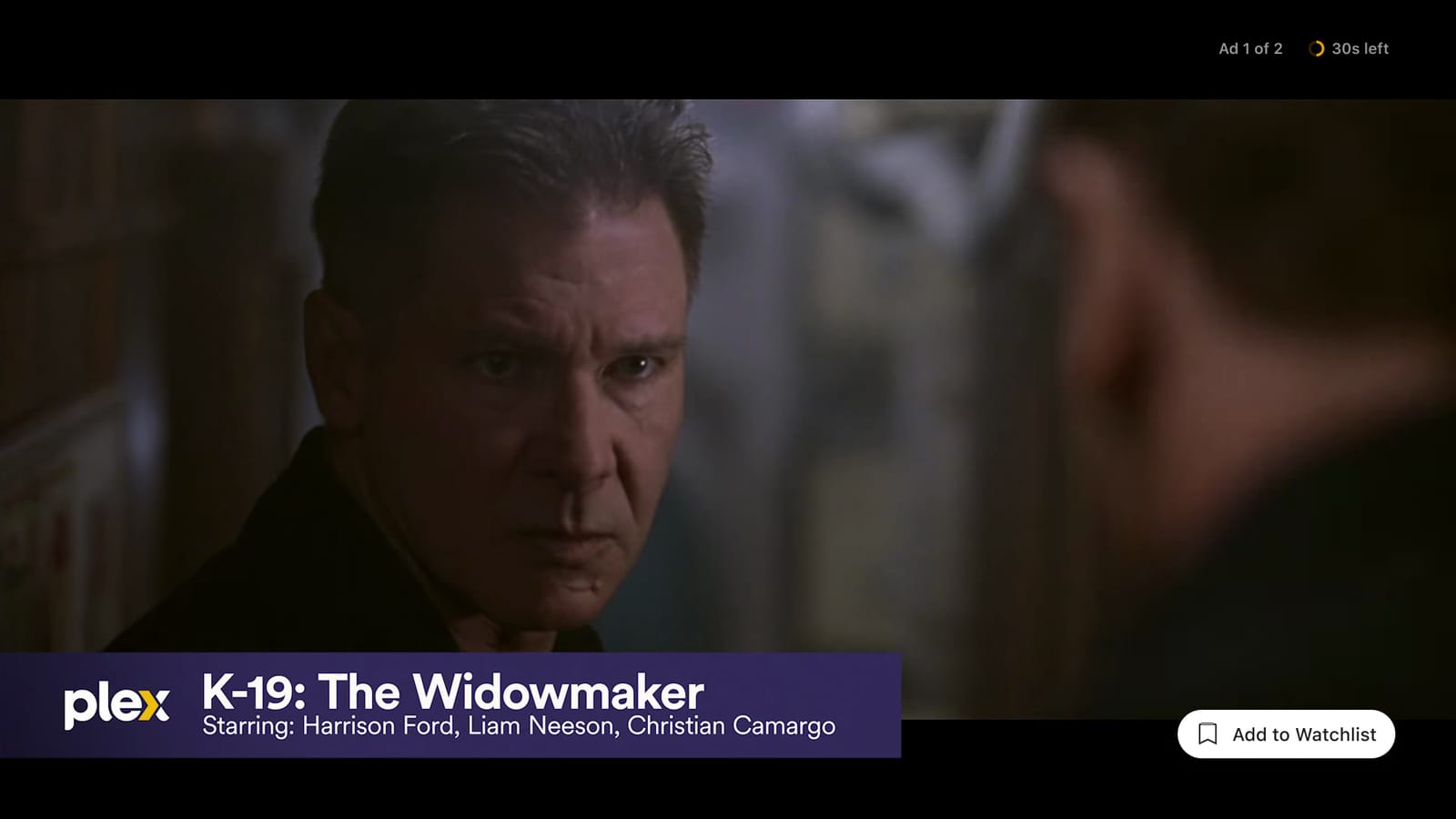
In-Stream Video ads can include an optional “Add to Watchlist” call-to-action overlay, allowing viewers to save the advertised title to their personal watchlist without interrupting playback. The CTA appears as a white pill-shaped button in the bottom-right corner of the video player during ad playback.
| Attribute | Requirement |
|---|---|
| CTA Type | Add to Watchlist overlay |
| Content ID | Plex GUID, IMDb ID, or TMDB ID |
| Screen Position | Bottom-right corner of video player |
| Button Style | White pill button with bookmark icon, backdrop blur |
Asset Checklist
| Asset | Format | Required |
|---|---|---|
| Video Creative | MP4, 1920×1080, 16:9 | Required |
| VAST Tag | VAST 2.0 or 3.0 URL | If 3rd-Party Served |
| Content ID (for Watchlist) | Plex GUID / IMDb / TMDB | If Add to Watchlist |
Pause Ads
Overview
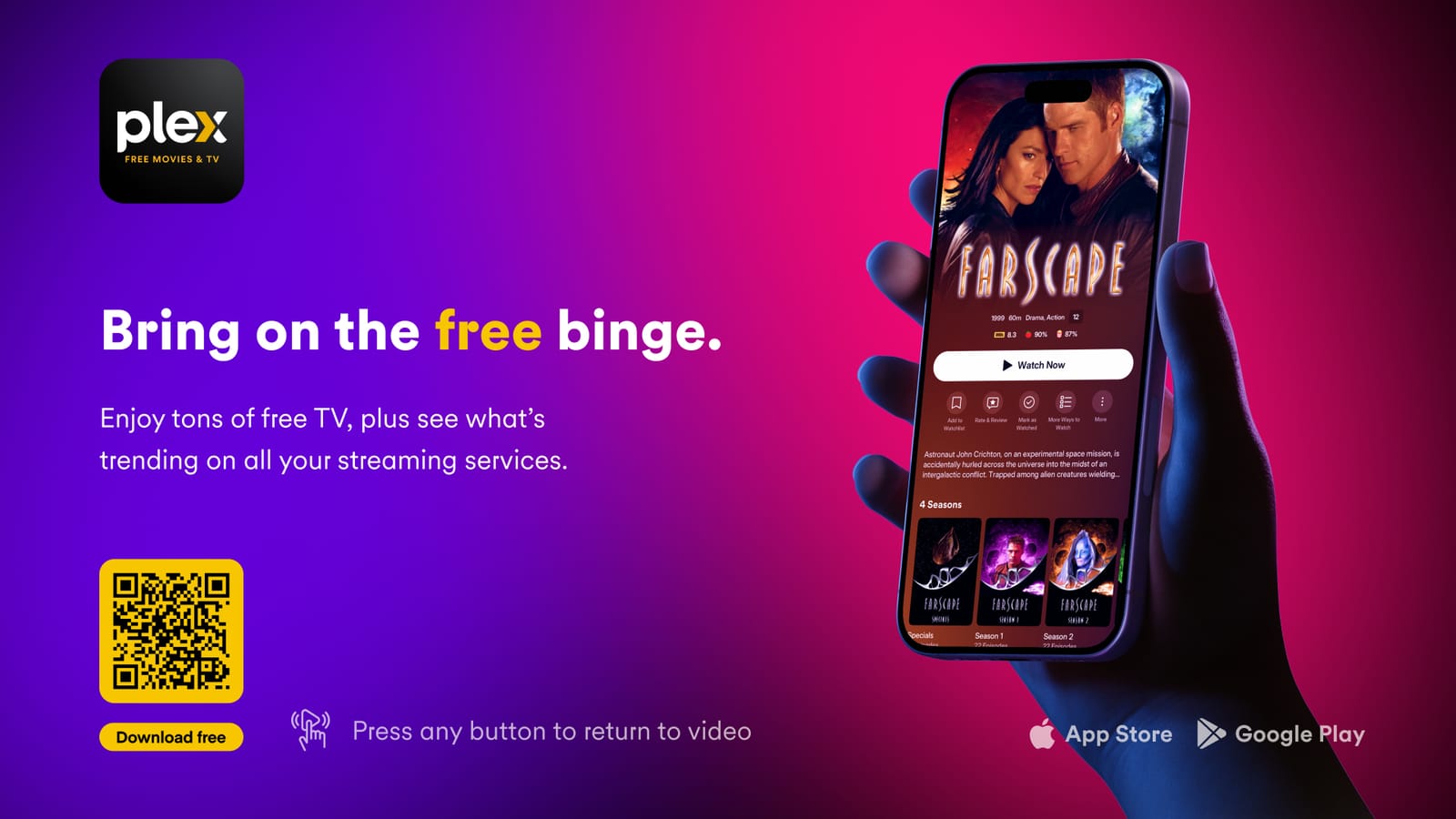
Put the viewer in control with non-disruptive ads that appear when users pause AVOD playback. Pause Ads are static image creatives displayed across all platforms, offering brand visibility in a low-interruption, high-attention moment.
Creative Specs
| Attribute | Requirement |
|---|---|
| Platforms | Cross-Platform (TV, Web, Mobile) |
| Dimensions | 1920 × 1080 |
| Aspect Ratio | 16:9 |
| Creative Format | Static Image |
| File Type | JPEG, PNG |
| Audio | None (silent only) |
| Display Duration | :30s |
Asset Checklist
| Asset | Format | Required |
|---|---|---|
| Pause Image | JPEG or PNG, 1920×1080, 16:9 | Required |
Sponsored Emails & Push
Overview
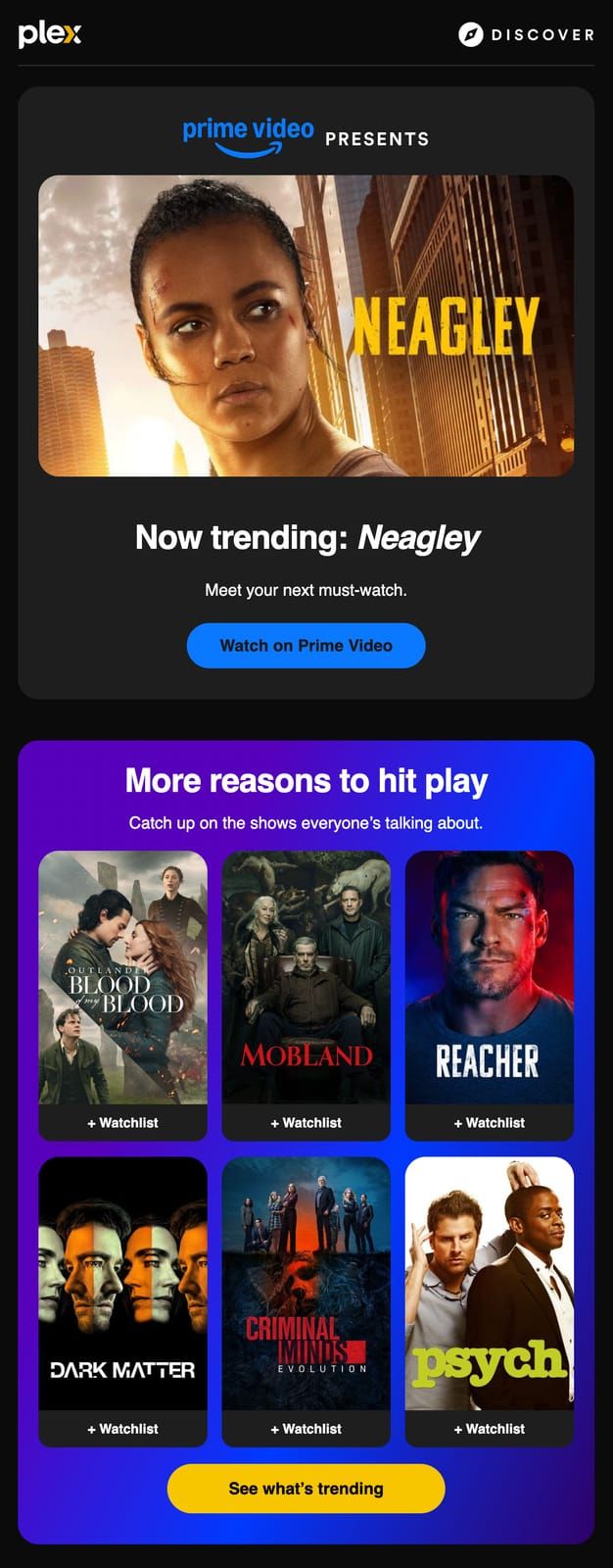
Email & Push sponsorships are premium outbound placements that are highly targeted to reach users directly in their inboxes and on their mobile devices. They combine custom brand copy, rich imagery, and a direct call-to-action to drive engagement with your content, product, or service.
Six placement options are available, ranging from a fully custom dedicated email through to a single push notification. Each is detailed below.
Dedicated Email
Custom sponsored emails are designed around your creative goals, and as a result can vary in execution and module length. The specs below should be seen as a starting point.
Creative Elements
Service Provider Logo
| Attribute | Requirement |
|---|---|
| Minimum Resolution | 1920 px wide or 180 px tall (whichever is met first) |
| File Format | SVG (preferred) or PNG with transparent background |
| Max File Size | 1 MB |
| Color | Light and dark versions |
| DPI | 72 DPI |
Hero Art
| Attribute | Requirement |
|---|---|
| Aspect Ratio | 9:16, 16:9 (preferred), or 1:1 (preferred) — depends on layout |
| Minimum Resolution | 1200 × 2133 px (9:16) / 1200 × 675 px (16:9) / 1200 × 1200 px (1:1) |
| File Format | JPG or PNG |
| Max File Size | 1 MB |
| DPI | 72 DPI |
Hero Copy
| Attribute | Requirement |
|---|---|
| Headline | 30–60 characters |
| Description | 160–300 characters |
| CTA Button | Max 20 characters If linking to an external page, include the service provider (Watch now on AMC+) |
| Destination Link | Can link to a Plex page or an external page |
Secondary Module Art May not be needed
| Attribute | Requirement |
|---|---|
| Aspect Ratio | 16:9 or 1:1 — depends on layout |
| Minimum Resolution | 1200 × 675 px (16:9) / 1200 × 1200 px (1:1) |
| File Format | JPG or PNG |
| Max File Size | 1 MB |
| DPI | 72 DPI |
Secondary Module Copy May not be needed
| Attribute | Requirement |
|---|---|
| Headline | 30–60 characters |
| Description | Optional — max 200 characters |
| CTA Button | Max 20 characters If linking to an external page, include the service provider (Watch now on AMC+) |
| Destination Link | Can link to a Plex page or an external page |
Email Spotlight
Single or multi-title / collection
Positioned mid-email, this module includes your logo, imagery, and a CTA — seamlessly integrated alongside curated content. It’s a great way to align with Plex’s editorial voice while driving traffic, awareness, or conversions.
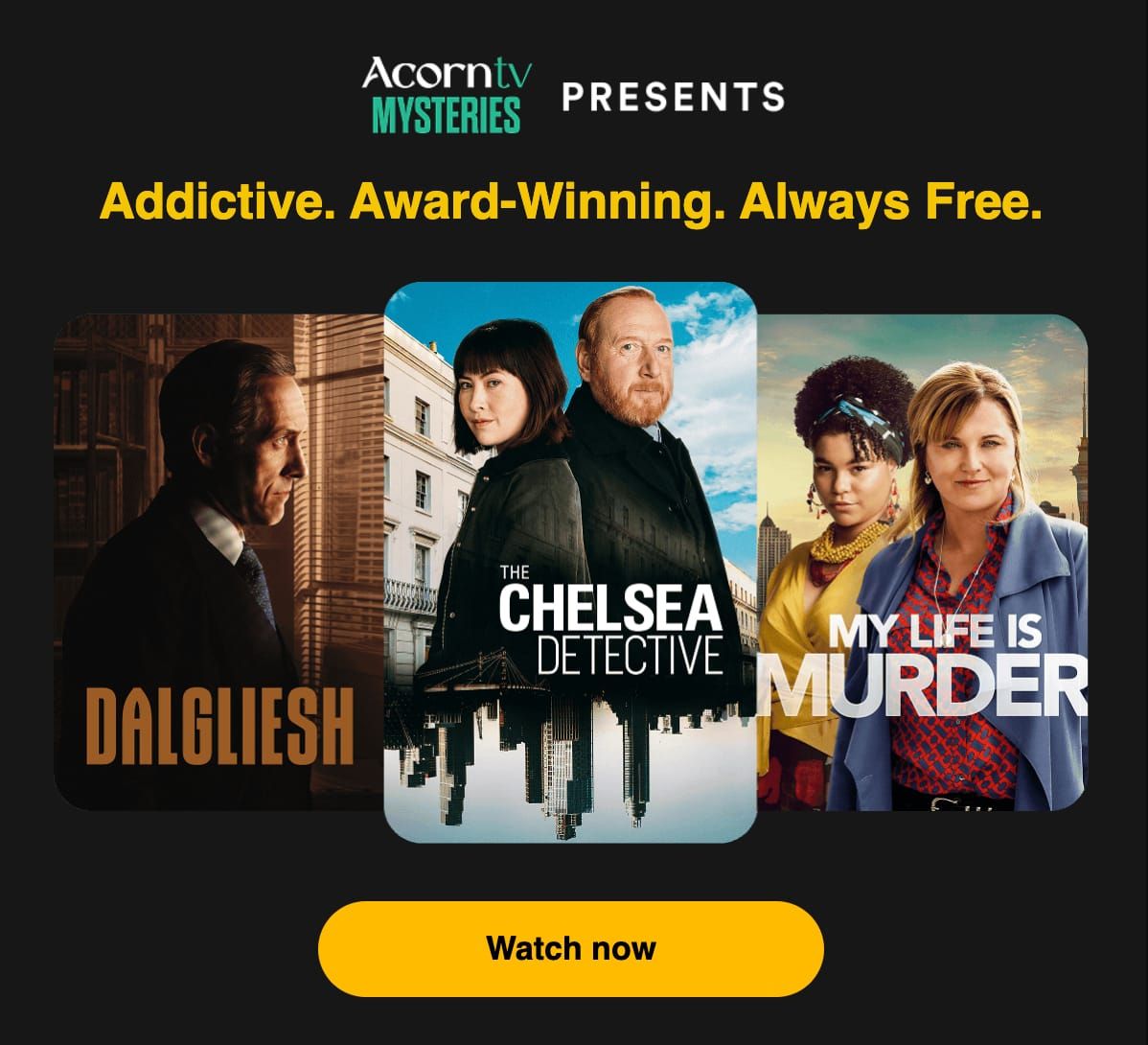
Creative Elements
Service Provider Logo
| Attribute | Requirement |
|---|---|
| Minimum Resolution | 1920 px wide or 180 px tall (whichever is met first) |
| File Format | SVG (preferred) or PNG with transparent background |
| Max File Size | 1 MB |
| Color | Light and dark versions |
| DPI | 72 DPI |
Hero Art
| Attribute | Requirement |
|---|---|
| Aspect Ratio | 16:9 |
| Minimum Resolution | 1200 × 675 px |
| File Format | JPG or PNG |
| Max File Size | 1 MB |
| DPI | 72 DPI |
Hero Copy
| Attribute | Requirement |
|---|---|
| Headline | 30–60 characters |
| CTA Button | Max 20 characters If linking to an external page, include the service provider (Watch now on AMC+) |
| Destination Link | Can link to a Plex page or an external page |
Email Spotlight with Short Description
Single or multi-title
Positioned mid-email, this module includes your logo, imagery, a short description, and a CTA — seamlessly integrated alongside curated content. It’s a great way to align with Plex’s editorial voice while driving traffic, awareness, or conversions.
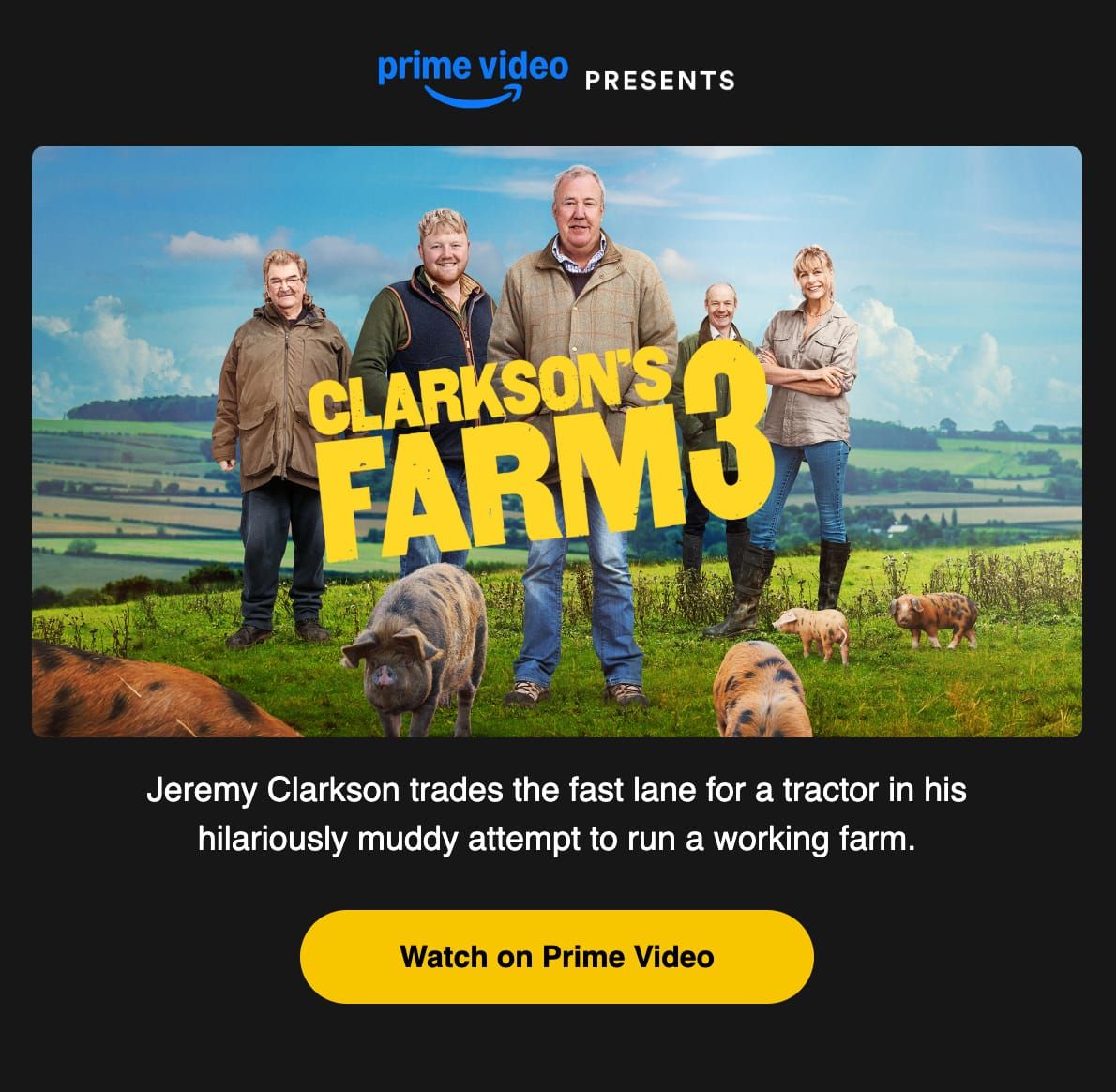
Creative Elements
Service Provider Logo
| Attribute | Requirement |
|---|---|
| Minimum Resolution | 1920 px wide or 180 px tall (whichever is met first) |
| File Format | SVG (preferred) or PNG with transparent background |
| Max File Size | 1 MB |
| Color | Light and dark versions |
| DPI | 72 DPI |
Hero Art
| Attribute | Requirement |
|---|---|
| Aspect Ratio | 16:9 |
| Minimum Resolution | 1200 × 675 px |
| File Format | JPG or PNG |
| Max File Size | 1 MB |
| DPI | 72 DPI |
Hero Copy
| Attribute | Requirement |
|---|---|
| Headline | 30–60 characters |
| Description | 160–300 characters |
| CTA Button | Max 20 characters If linking to an external page, include the service provider (Watch now on AMC+) |
| Destination Link | Can link to a Plex page or an external page |
Sponsored Collection with Banner Add-on
Appear as the highlighted sponsor of a collection available in the Plex app. The bottom banner ad is a seamless placement that appears at the end of our editorial or lifecycle emails — perfect for time-sensitive promotions, reminders, or reinforcing your campaign message.
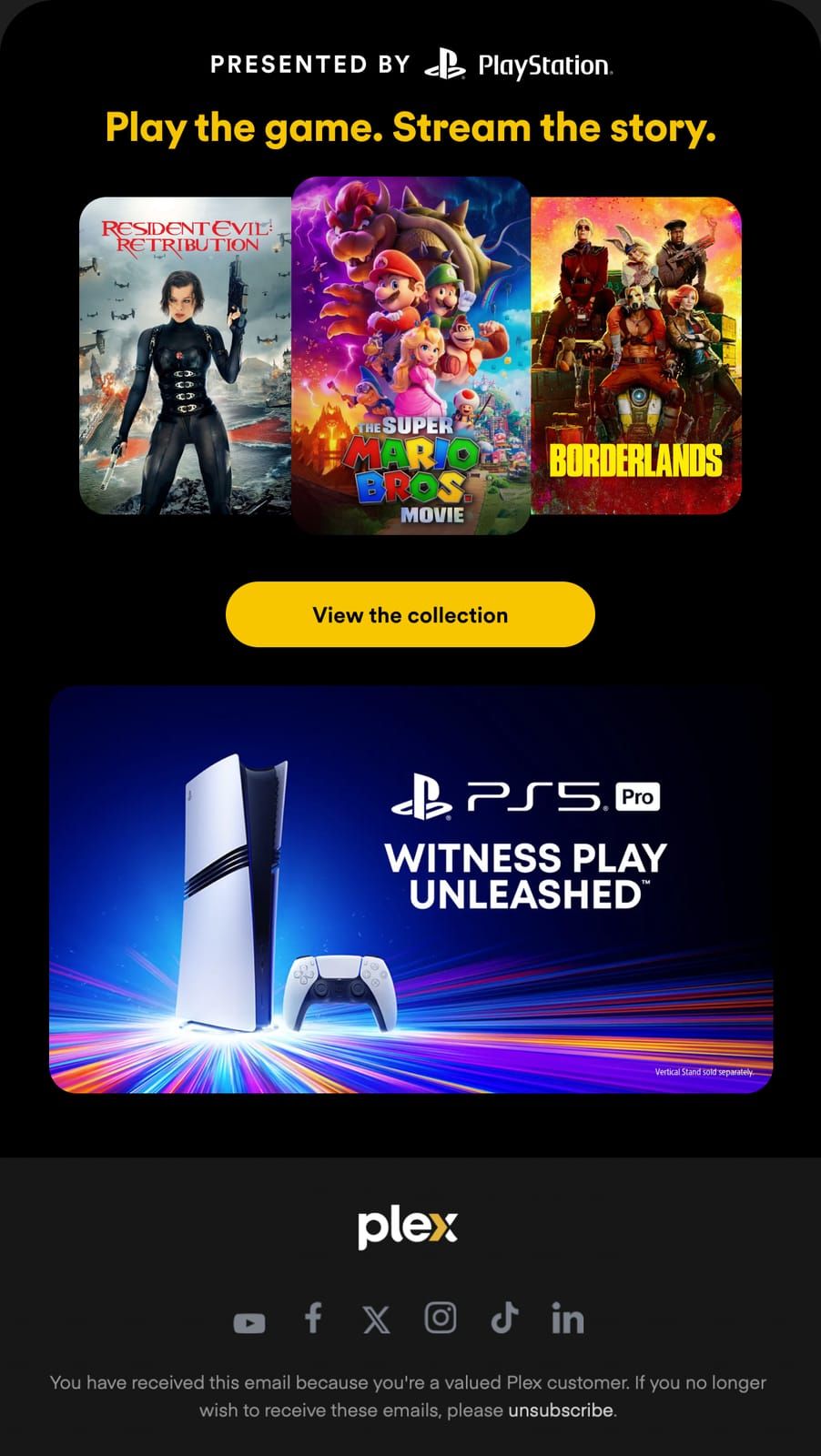
Creative Elements
Service Provider Logo
| Attribute | Requirement |
|---|---|
| Minimum Resolution | 1920 px wide or 180 px tall (whichever is met first) |
| File Format | SVG (preferred) or PNG with transparent background |
| Max File Size | 1 MB |
| Color | Light and dark versions |
| DPI | 72 DPI |
Collection Copy
| Attribute | Requirement |
|---|---|
| Headline | 30–60 characters |
| CTA Button | Max 20 characters |
| Destination Link | Links to the collection in Plex |
Banner
| Attribute | Requirement |
|---|---|
| Aspect Ratio | 16:9 |
| Minimum Resolution | 1200 × 675 px |
| File Format | JPG or PNG |
| Max File Size | 1 MB |
| DPI | 72 DPI |
| Destination Link | Can link to a Plex page or an external page |
Push Notifications
Reach fans immediately about upcoming titles, releases, or marathons with custom push notifications.
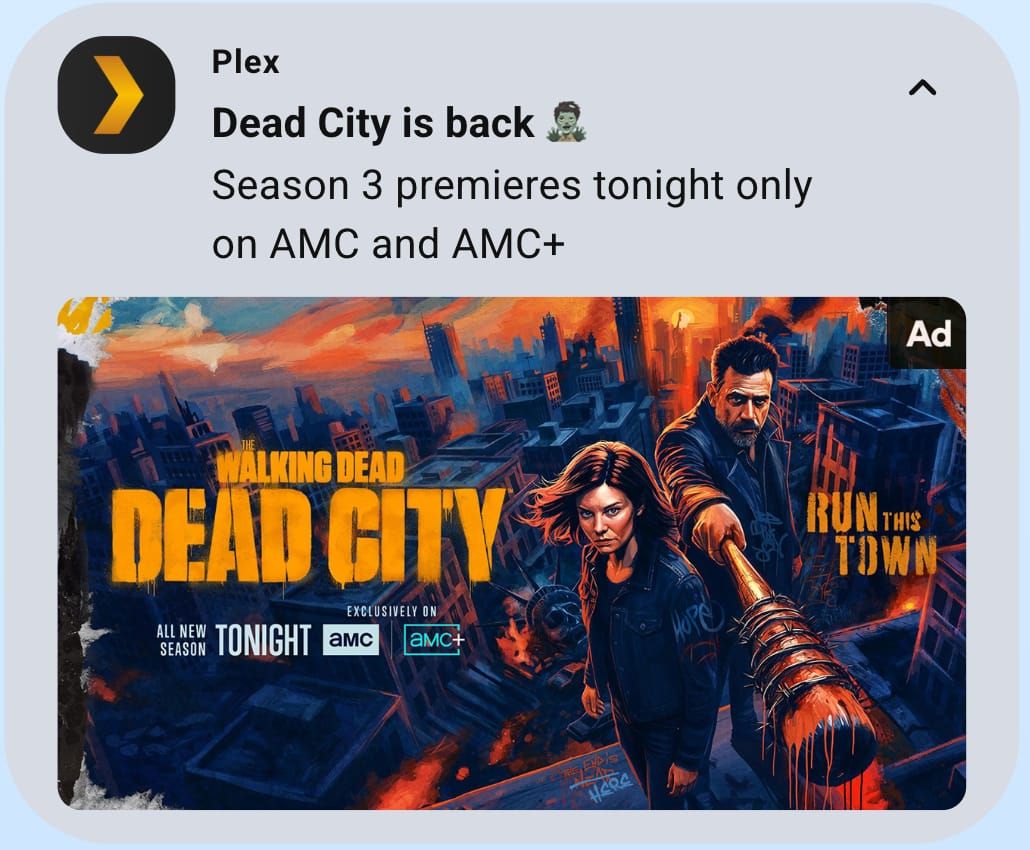
Creative Elements
Art Optional
| Attribute | Requirement |
|---|---|
| Aspect Ratio | 16:9 or 2:1 |
| Minimum Resolution | 1200 × 675 px (16:9) / 1200 × 600 px (2:1) |
| File Format | JPG or PNG |
| Max File Size | 1 MB |
| DPI | 72 DPI |
Art Guidelines
- Clutter-free is best
- Avoid text and multiple logos if possible
Copy
| Attribute | Requirement |
|---|---|
| Headline | 30–50 characters |
| Body | 60–120 characters Put the most relevant information in the first 60 characters. Depending on screen size, anything beyond this could potentially be cut off. |
| Destination Link | Links to a detail page within Plex |
Copy Guidelines
- Be conversational — if you’d say it to a friend, you’re on the right track
- Short and sweet is best — be concise; keep the main thing the main thing
- Use emojis, but sparingly — they’re a great way to convey emotion, but keep it to two or fewer
- Avoid exclamation points — unless it’s part of a title, stick to periods
Examples
| Headline | Body |
|---|---|
| WNBA game alert 🏀 | Watch Fever vs. Wings, then Sparks vs. Storm tonight on ION. Coverage starts at 7 pm ET. |
| MLF Bass Pro Tour 🐟 | Watch live @ 1 pm ET on Game & Fish TV. See who will take home the $150k prize. |
| See you at the Continental 🛎️ | Catch 24 hours of John Wick starting at 2 pm ET on 50 Cent Action. |
| Hollywood Legends Marathon ⭐ | Watch The Godfather and more from 1:30 am to 11:59 pm PST on Miramax Movie Channel. |
Asset Checklist
| Asset | Format | Required |
|---|---|---|
| Service Provider Logo | SVG or PNG (transparent), light & dark versions | Required — all email placements |
| Hero Art | JPG or PNG, 16:9 / 1:1 / 9:16 per placement | Required — dedicated & spotlight |
| Secondary Module Art | JPG or PNG, 1200×675 (16:9) or 1200×1200 (1:1) | Optional — dedicated email only |
| Banner | JPG or PNG, 1200×675, 16:9 | Required — banner placements |
| Push Art | JPG or PNG, 1200×675 (16:9) or 1200×600 (2:1) | Optional |
| Copy | Headline, description, and CTA text per placement | Required |
| Destination Links | URL — Plex page or external page | Required |